How To Set Up Rich Pins For Blogger And WordPress

Rich Pins are popping up everywhere on Pinterest, and it’s slowly becoming the norm for bloggers to have them. They’re pins that include extra information—your website name and favicon—so pinners know exactly who they’re repinning from (aka you!). Whether you know it or not, you’ve probably seen them, and you can check out an example on my blog’s board. I got approved about a month ago and since then, my profile views and average monthly viewers have more than doubled! Setting up Rich Pins is extremely beneficial to your blog, and it only takes a few minutes to do!

Setting Up Rich Pins On Blogger

1. Adding Rich Pins on Blogger requires a bit of code, but nothing too complicated! First, go to Settings > Search Preferences > Meta Tags and edit the Description section to be “enabled”. Here you can add a short description of your blog, and when you go to edit your posts, you’ll see a new box in the options sidebar allowing you to enter a search description. This is a great place to write a brief summary of your post, although you can leave it blank and the first few lines of your content will show up instead.

2. Now go to Template > Edit HTML > and search for

<b:includable id='post' var='post'>

Underneath that, paste the following:


<meta expr:content='data:post.title' property='og:title'/>
<meta expr:content='data:blog.metaDescription' property='og:description'/>
<meta content='article' property='og:type'/>
<meta expr:content='data:blog.url' property='og:url'/>
<meta expr:content='data:blog.title' property='og:site_name'/>
<meta expr:content='data:post.timestampISO8601' property='article:published_time'/>
<meta content='YOUR BLOG'S TOPIC' property='article:section'/>
<b:loop values='data:post.labels' var='label'>
<meta expr:content='data:label.name' property='article:tag'/>
</b:loop>

Replace “YOUR BLOG’S TOPIC” with a word that sums up the content of your blog. For example, if you run a lifestyle blog, use “Lifestyle”.

3. Now that your code is all set up, head over to the Rich Pins Validator and enter a link for your most recent blog post. Click Validate, and once all of your information is correct, click Apply. If you have any issues with the installation, go back and check to ensure you placed the code in the right place.

4. That’s it! It can take as little as a few days or up to a month to be accepted—it took me about a week. Pinterest will email you and set everything up from there!

Setting Up Rich Pins For WordPress

1. Thanks to the beauty of plugins, setting up rich pins on WordPress is super simple! First, go install the Yoast SEO Plugin. It’s a search engine optimization plugin that can help your blog’s search engine rankings, and even if you don’t use rich pins, I recommend installing it! After you activate the plugin, go to SEO > Social > Facebook and make sure the “Add Open Graph meta data” box is checked.

2. Head over to the Rich Pins Validator and enter a link to one of your blog posts. Then click “Validate”.

3. Make sure all of your information is correct and apply. That’s it! It could take as little as a few days or up to a month for Pinterest to email you, so be ready to wait.
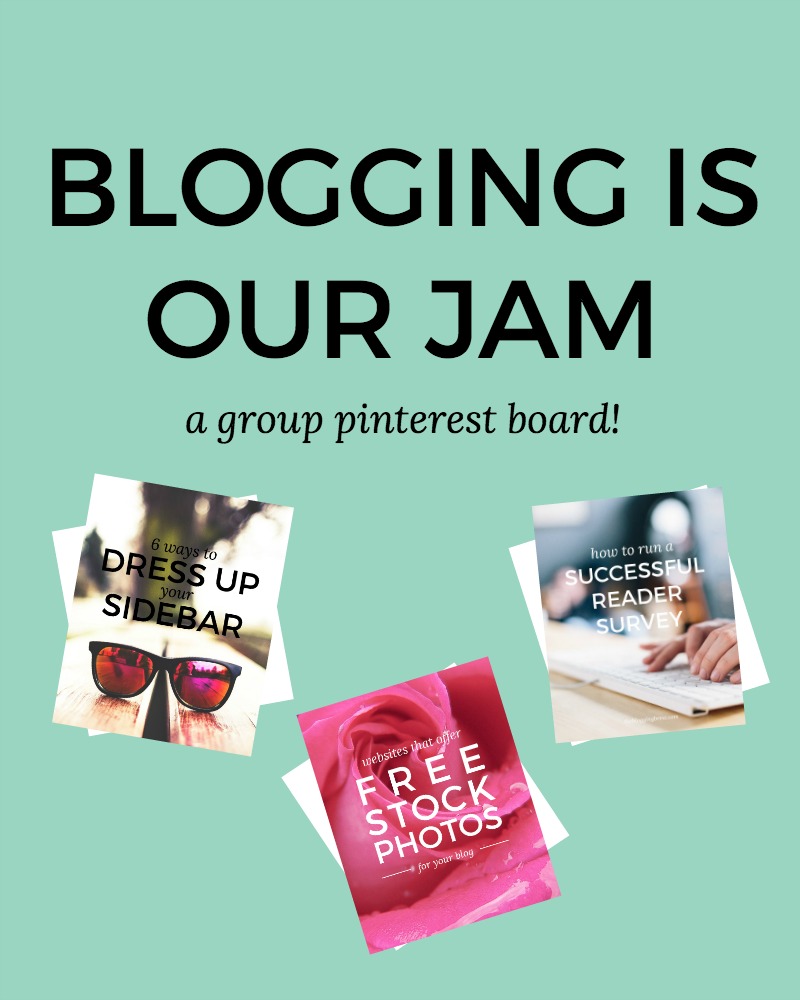
Blogging Is Our Jam – Group Pinterest Board!

I’ve been planning on making a post of my newly designed room, but that’s taking a heck of a lot longer than I thought, so instead I’ve gone 5 days postless. I had my little quote series going (kind of) so that should’ve taken up a day, but conveniently, my Photoshop trial expired 2 days after that first post, and I’m not ready to spend all that money for a year’s membership! Instead, I decided to start something that doesn’t require any money/special programs that are totally unaffordable on a college budget—a group Pinterest board for everyone who shares my love of blogging about blogging!

Blogging Is Our Jam

To be honest, this has been a plan of mine since I rebranded to The Blogging Brew. How could I blog about blogging, and not make a Pinterest board about it?? I’m a member of a lot of group Pinterest boards, but a lot of them have strayed from their initial purpose and are filled with random posts that pinners snuck in there. I wanted to create a board that can not only be a resource for bloggers, but a place to get new eyes on any blogging related post they make. The result? The Blogging Is Our Jam group Pinterest board!

I want this board to feel welcoming and fun, but still have some guidelines to keep things in control. Basically, if it’s about blogging (tutorials, design tips, growth inspiration, etc.), it can be pinned! That’s it. Plain and simple.

So of course you want to join in now, right? If this sounds like a board for you, just head over to the board and follow the steps in the description! I didn’t make any pin limit because I figured this is a strict enough niche that spamming it will be pretty hard, so pin away!

Adding A Hovering Pinterest Button To Your Blog Images

Note: This is currently a Blogger only tutorial, but I plan on adding a WordPress version soon!

As you probably know by now, Pinterest is one of my favorite social media platforms, especially when it comes to blogging. It’s the perfect place to get your content in front of new eyes, and test out your approach to new readers. And I mean, who doesn’t love an infinite feed of blogging tips, clothing styles, and cute puppies? Simply put, I can’t get enough of it, so when I redesigned my blog a few days ago, I made sure it was Pinterest friendly!

One of the best things you can do for your blog is make your content easily shareable. If I can’t find a way to share your post within a few seconds of glancing, I probably won’t share it. I’ve found that the easiest way to prompt my readers to pin my graphics is by making it pinnable through a hover button. That way, all they have to do is hover over their favorite image, click my custom button, and be taken to a window for pinning it! You might have seen this kind of button on other blogs and thought it was something only knowledgable coders can install, but I promise, it’s super simple.

I’m going to take you through a short tutorial for installing your own hovering Pinterest button, and a few tips for designing your custom button. If you want to make yours even more interactive, I’ll also show you how to add a hover transparency effect!

INSTALLING YOUR PINTEREST HOVER BUTTON

1. From your blog’s dashboard on Blogger, go to Template > Edit HTML.

2. Search for the </body> tag.

3. Copy the code below, and paste it above the </body> tag:

4. To use your own custom button, replace the URL in line 3 with the direct URL of your button image. You can get that URL by uploading your image to a website like Photobucket.

5. If you don’t want your button to be placed in the center of your graphic, change the center in line 4 to topleft, topright, bottomleft, or bottomright.

6. Save and view your blog!

DESIGNING YOUR CUSTOM PINTEREST BUTTON

The great thing about this tool is that you can use whatever image you want, which is great for keeping your blog’s color scheme consistent! Here are some tips for creating the best Pinterest button:

  • If you don’t have professional graphic design software, I recommend using a website like Canva, Pixlr, or Picmonkey. I might have to make an entire post about these websites, because I love them so much!
  • A good size to go off of is 100 x 100 pixels, which avoids covering up your graphic too much or making it too small to read.
  • If you use text on your button (like “Pin It!”), use a simple font. Fancier fonts tend to take up more room, meaning the text has to be smaller to fit in your button. An exception would be using your blog header’s font, as long as it’s readable!
  • Stick to your blog’s theme. It makes your blog look more professional and clean!

ADDING A TRANSPARENCY EFFECT ON HOVER

1. From your Blogger dashboard, go to Template > Customize > Advanced > Add CSS

2. Copy the following code and paste it in the box:

3. Click “Apply to Blog” and check out your effect!

UPDATE: I will no longer be following comments on this post, so if you’re having any trouble, feel free to tweet at me!